
Using the Command Line
The command line might seem like a scary place. With no fancy GUI windows to click on just you, your keyboard, and a (in most cases) bash prompt.
Understanding the terminal
A terminal or terminal emulator is a program that emulates a video terminal in some sort of other video environment, like a GUI. These terminal emulators provide an environment for application like a text shell or CLI application to run in. The most common shell on linux is the BASH, or born again shell, shell. A typical bash prompt could look like the following:
nathan@virtmachine:~$This prompt is split up into the following parts
- The first part is the current username, in this case it is
nathan - The second part is the hostname of the PC or the PC’s name, in this case it is
virtmachine - The Third part is the path, in this case it is
~ - The fourth path tells you if you are a regular user of root, in this case it is a normal user indicated by the
$
You can change this prompt to give you different information, with specific programs designed to change the shell prompt like starship, which is what I use. This shell provides a scripting language as well a way to invoke programs.
Opening a terminal windows
To get started using the CLI, you need to open you terminal emulator, on a generic ubuntu install, click on the nine dots
in the bottom right:
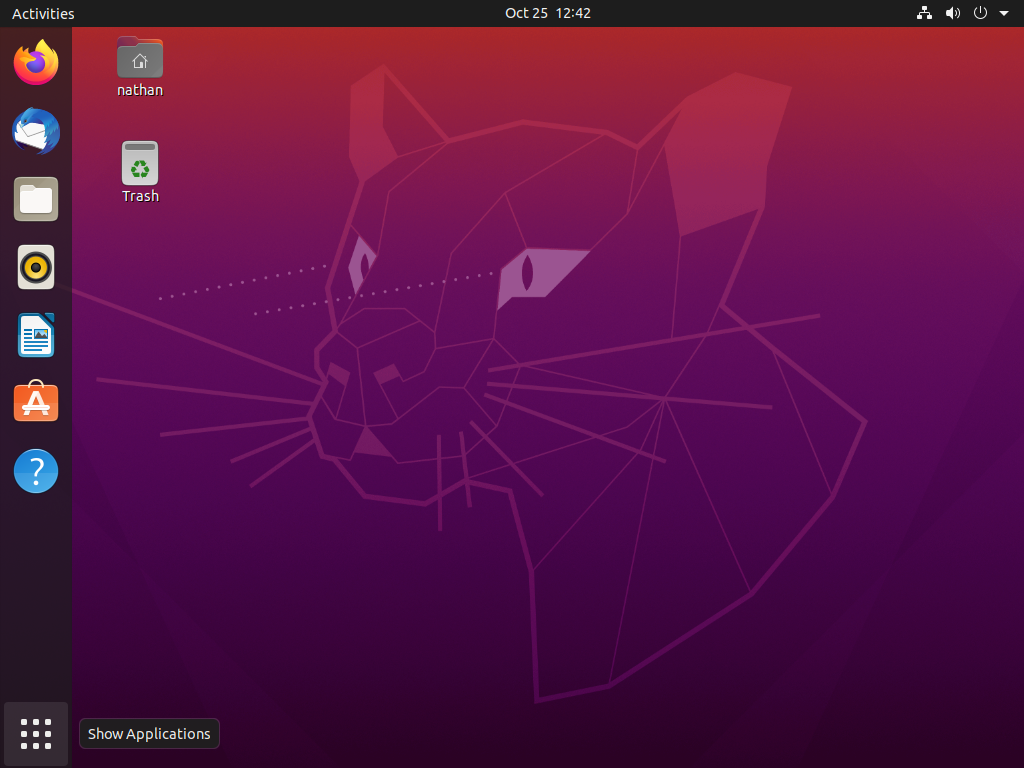 the search of ‘Terminal’.
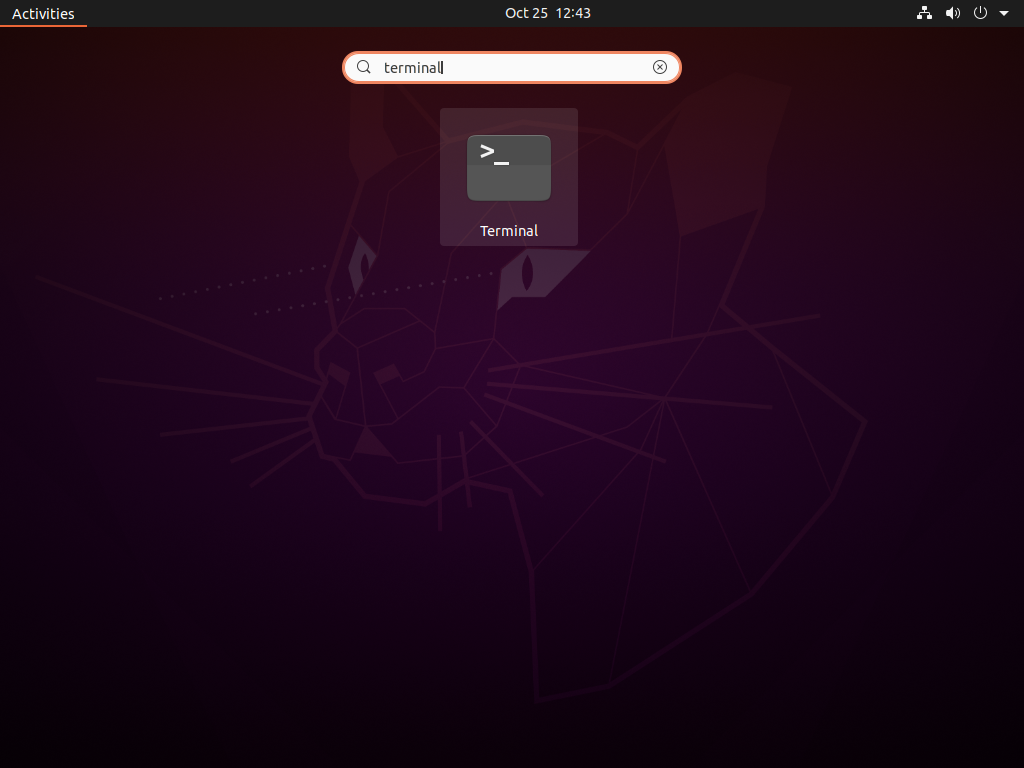 The click on the ‘Terminal’ application. This should open up the following window
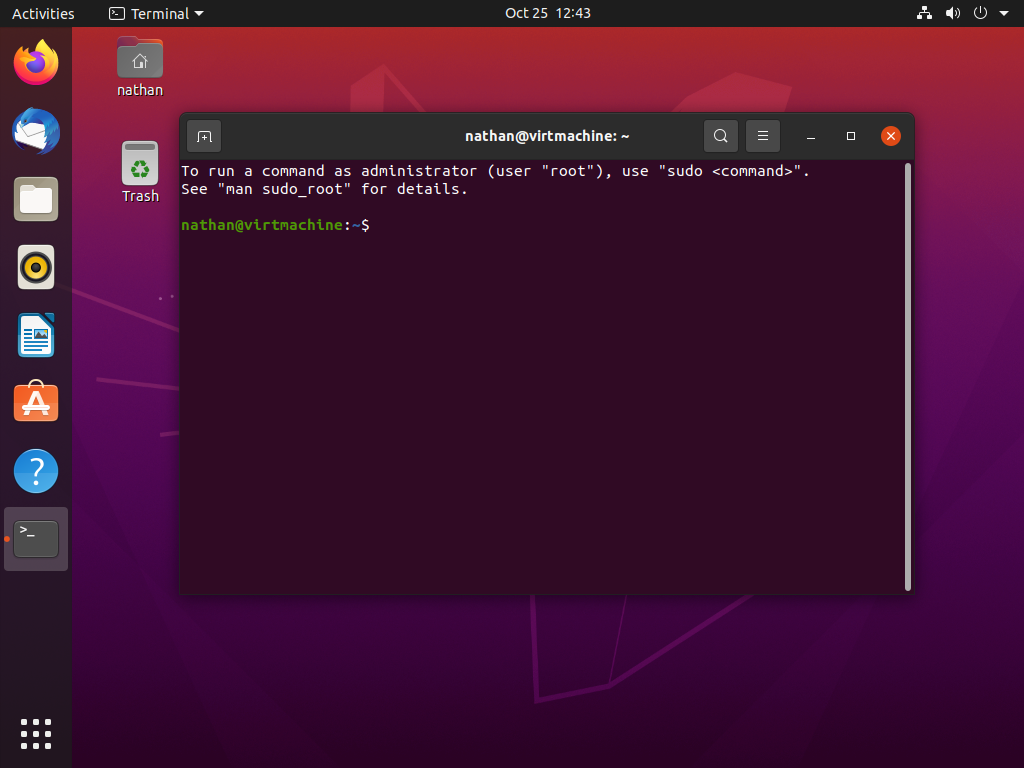 .
.
If this is the first time opening the terminal, you might see a message about the sudo command. This command is the
equivalent of ‘Run as administrator’.
Navigating the file system
An important thing to know how to do in the terminal is how you navigate the file system. Firstly you may want to know where you are in the file system, to do this use the pwd command:
pwdThis will show you your current path. To change
directory you can use the cd command.
cd <path>This allows for you to change into any given directory. with the given path. For example if you want to enter you downloads folder use:
cd ~/DownloadsNote: the ~ is being used in place for /home/nathan, my home directory.
If you need to go up a directory, i.e. from /home/nathan/Downloads to /home/nathan, you can use
cd ..Finally, you can list the contents with the ls command.
lsThis will show everything in the director, although not the directory any hidden files, if you want to show hidden files
use the -a flag
ls -aRunning as administrator
To run software as administrator like a package manager or systemctl because they need elevated access to preform the
actions. This can be done using the sudo command.
sudo <command>This command is very useful for all sorts of different uses.
Managing services
Majority of the linux system will use the systemd init system to start and manage services on linux. Services are just
programs that have a specific task running in the background, like Wi-Fi and sound. Services can be started and stopped
and queried using the systemctl command.
Starting a service
To start a service, use
sudo systemctl start <service>This will start service in the background
Querying the status of a service
A service can be queried with
sudo systemctl status <service>Stopping a service
A service can be stoped with
sudo systemctl stop <service>Starting a service at boot
A service can be started on boot using the
sudo systemctl enable <service>This will start the service in the background
Stopping a service
A service can be stopped using
sudo systemctl disable <service>