
Installing programs
To get setup with your computer, you will want to install some software. Most software on Windows comes in a .exe file which contains all the information necessary to install a program. In this example, I will be installing chrome and steam to demonstrate the process of installing an application
Chrome Install
Head to chrome.google.com, and download the installation file.
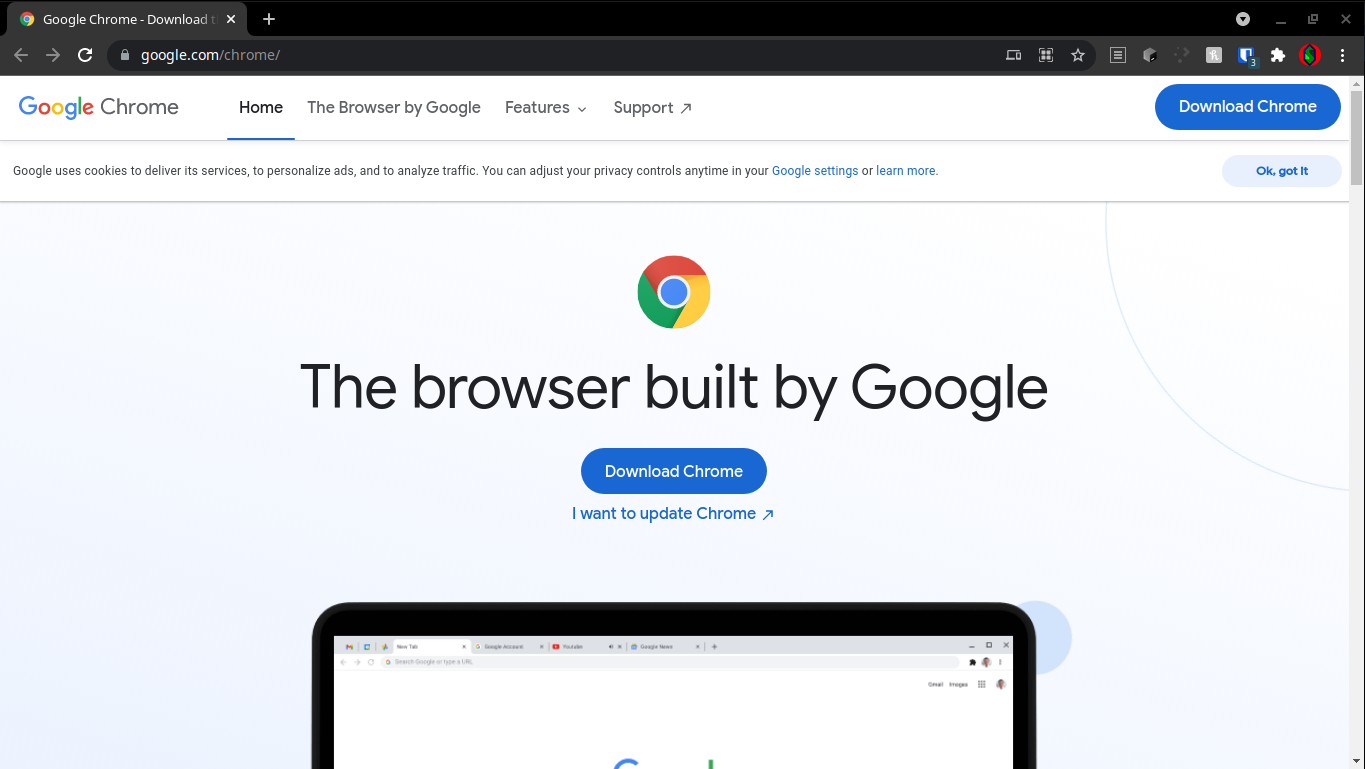 From here click Download Chrome.
From there, open the installer, and the program will install itself.
Installing steam
Step 1
Steam can be downloaded from store.steampowered.com, once the installer has been downloaded from the website, it can be run just like the chrome installer
Step 2
You will notice that once you start the steam installer, it won’t automatically install the program,
instead it will ask you some questions about how to install the application. Firstly it will bring you to a welcome
page like the following
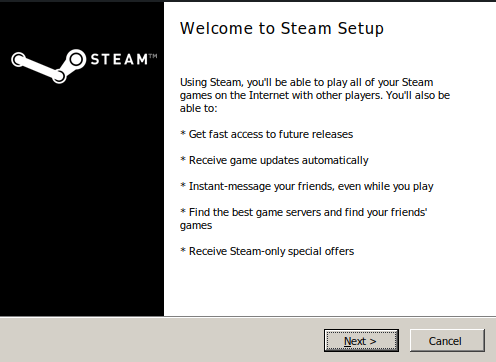 Click next to get started with the install
Step 3
Next you will be asked about the language that you want to use
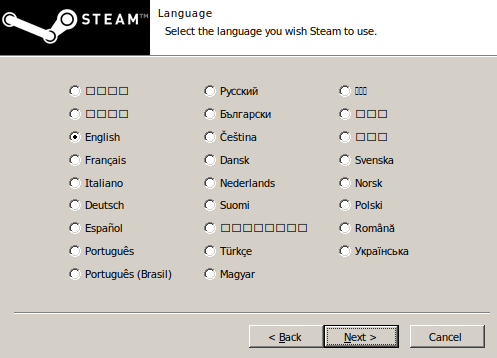 Click Next once you have chosen your language.
Step 4
Next you will be asked where you would like to install steam
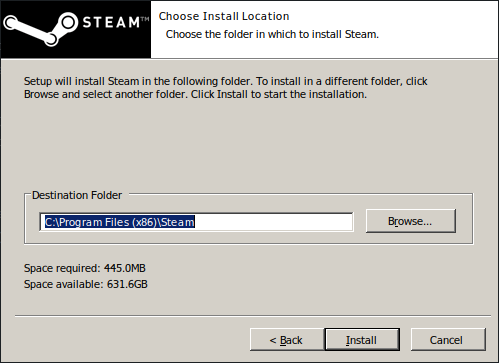 The default location will serve fine, but if you have another dirve that you’d like to use, or prefer a different install
location, you can always choose that. Click install to start the install
The default location will serve fine, but if you have another dirve that you’d like to use, or prefer a different install
location, you can always choose that. Click install to start the install
Step 5
Wait for the installation to complete, and then you can launch the application.
Conclusion
This is an example of two types of application, one which prompts the user about any customizations that they would like to make, and the other just goes ahead and does its thing. Most applications will follow this installation type on Windows, so this should be enough to get you through. The basic premise is find the exe, run it and follow the instructions.